
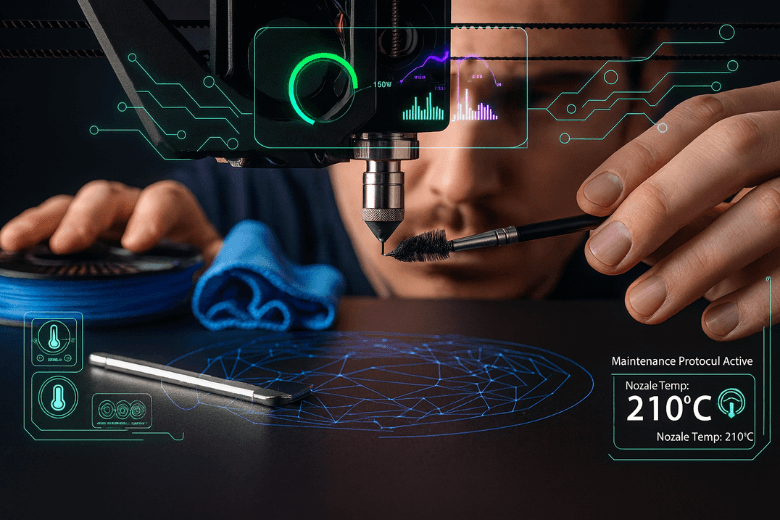
Regular 3d printer maintenance keeps your 3d printer running at optimal performance. You remove dust and residue, which helps your 3d printer maintain optimal performance every time you print. Clean surfaces and a well lubricated machine prevent wear and ensure optimal performance over time. Simple routines like wiping the nozzle or calibrating the bed do not require advanced skills. When you stay consistent, you reduce the risk of sudden breakdowns and enjoy reliable results.
You protect your investment and extend the life of your 3d printer with these habits.
Key Takeaways
- Regular cleaning of the nozzle and print bed prevents clogs and ensures high-quality prints. Aim for weekly cleaning to maintain optimal performance.
- Lubricate moving parts monthly to reduce wear and noise. This simple step extends the life of your 3D printer and improves print accuracy.
- Store filament in airtight containers to prevent moisture absorption. Proper storage leads to better print quality and fewer failures.
- Check belt tension weekly to avoid layer shifting and misaligned prints. Tight belts ensure smooth operation and consistent results.
- Keep a maintenance log to track activities and repairs. Documenting your efforts helps identify patterns and prevents future issues.
Routine 3D Printer Maintenance Tips
Keeping your 3d printer in top condition requires regular maintenance. You need to follow a routine that covers daily, weekly, and monthly tasks. These tips help you prevent common problems and keep your 3d printer running smoothly. The following sections break down the essential steps for cleaning, calibration, and workspace care.
Cleaning Nozzle and Print Bed
You should clean the nozzle and print bed regularly to avoid print failures and maintain high-quality results. Cleaning removes filament residue and dust, which can affect adhesion and cause clogs. Most manufacturers recommend a weekly cleaning schedule for both the nozzle and the build plate. You can refer to the table below for a quick overview:
|
Task |
Frequency |
|---|---|
|
Clean the Build Plate |
Weekly |
|
Clean the Nozzle |
Weekly |
|
Monthly Maintenance |
Monthly |
For effective cleaning, you have several options:
- Use a needle or cleaning kit to clear minor blockages in the nozzle. Heat the nozzle to printing temperature and gently insert the needle.
- Soak the nozzle in a solvent like acetone if you use filaments such as PETG or Nylon. Remove the nozzle first and soak it for several hours.
- Replace the nozzle if cleaning does not solve the problem. This step saves time and ensures consistent print quality.
- Use a blow torch for metal nozzles to burn off stubborn residue. Take care to avoid overheating.
- Try an ultrasonic cleaner for deep cleaning, especially if you have multiple nozzles.
For the print bed, you can use acetone for glass surfaces, window cleaner for grease removal, or dish soap with warm water for general cleaning. Always dry the bed thoroughly before starting a new print.
Tip: High-quality filament and proper storage reduce the need for frequent cleaning. Perform regular cold pulls to clear micro-residues and keep a maintenance schedule.
Lubricating Moving Parts
Lubrication is a key part of 3d printer maintenance. You need to keep the belts, rods, and bearings moving smoothly to prevent wear and reduce noise. Most 3d printers benefit from monthly lubrication, but you should check the manufacturer’s guidelines for your model.
- Apply a small amount of light machine oil or grease to the linear rods and bearings.
- Wipe away old lubricant and dust before applying new oil.
- Avoid over-lubricating, as excess oil can attract dust and cause build-up.
Regular maintenance of moving parts ensures accurate calibration and extends the life of your 3d printer. You will notice smoother movement and fewer mechanical issues when you keep these parts in good condition.
Checking Belts and Axes
Belts and axes play a crucial role in the accuracy of your 3d prints. Loose or worn belts can cause inconsistent layers, waves, or shifting in your prints. You should check belt tension and inspect the axes every week.
Signs that your belts or axes need attention include:
- Inconsistent prints, such as visible waves or layer shifts.
- Unusual noises during movement.
- Loose fittings or wobbling parts.
To fix these issues, tighten the X and Y belts and adjust the eccentric nut that connects the X arm to the Z axis. Replace belts if you see visible wear or damage. Regular calibration of the axes keeps your 3d printer precise and reliable.
Workspace Hygiene
A clean workspace supports reliable 3d printer operation and better print quality. Dust and debris can settle on moving parts, leading to jams and calibration errors. You should tidy your workspace daily and perform a deeper clean each week.
- Remove dust and scraps from the area around your 3d printer.
- Use a vacuum or soft brush to clean hard-to-reach spots.
- Install a fume extraction system if you print with materials that release fumes. Good air quality protects both you and your equipment.
- Store tools and filament in sealed containers to prevent contamination.
Note: Clean air and a tidy workspace reduce downtime and help you achieve consistent results. You also protect your health and extend the life of your 3d printer.
By following these tips and sticking to a regular maintenance routine, you keep your 3d printer in top condition. You will see better print quality, fewer breakdowns, and a longer lifespan for your machine.
Filament and Component Care
Storing Filament Properly
You need to store your 3d printer filament with care to keep your 3d prints consistent and reliable. Filament absorbs moisture from the air, which can cause problems for your 3d printer. Moist filament leads to poor adhesion, nozzle clogs, and failed 3d prints. You can prevent these issues by following best practices for storage.
- Use airtight containers with desiccant packs to block moisture from reaching your 3d printer filament.
- Keep your filament in a cool, dry place. The ideal temperature is between 15°C and 25°C.
- Invest in a filament dryer if you live in a humid area. This device removes excess moisture and keeps your 3d printer filament dry.
- Regularly check your filament for signs of moisture or damage. Brittle or swollen filament will not work well in your 3d printer.
Proper storage extends the life of your 3d printer filament. Dry filament lasts longer and gives you better 3d print quality. You save money because you waste less material and avoid replacing filament too often. A DryBox can help you keep humidity below 1%, which protects your 3d printer filament and improves your 3d prints. When you store your filament well, you get consistent results from your 3d printer every time.
Tip: Preventing moisture absorption is essential for your 3d printer. Dry filament means fewer failed 3d prints and less time spent fixing clogs.
Inspecting Nuts, Bolts, and Guides
You should inspect the nuts, bolts, and guides on your 3d printer regularly. Loose or worn parts can affect the accuracy of your 3d prints. You might notice shifting layers or strange noises if something is not tight. Use a simple checklist to keep your 3d printer in top condition:
- Check all nuts and bolts for tightness. Use the correct tools to avoid stripping threads.
- Inspect the linear guides and rails for dust or damage. Clean them gently and apply lubricant if needed.
- Make sure all moving parts on your 3d printer move smoothly. If you feel resistance, stop and check for obstructions.
Regular inspections help you catch problems early. You keep your 3d printer running smoothly and avoid bigger repairs. When you care for your 3d printer components, you get better 3d prints and a longer machine life.
Troubleshooting 3D Printer Issues
You will encounter common 3d printer issues during regular use. Understanding how to troubleshoot these problems helps you maintain your 3d printer and keep your 3d prints consistent. Good maintenance habits and quick action improve your 3d printer’s performance and extend its life. This section covers the most frequent problems and gives you practical steps to resolve them.
Clearing Nozzle Clogs
Nozzle clogs disrupt your 3d printer’s performance and lead to failed prints. You can spot a clog if filament stops extruding or you see gaps in your 3d layers. Regular maintenance prevents most clogs, but you still need to know how to clear them when they occur.
- Heat the nozzle to the printing temperature for your filament.
- Use a cleaning needle to gently remove any blockage.
- Try a cold pull by heating the nozzle, inserting filament, and pulling it out when cool. This removes debris stuck inside.
- Soak the nozzle in a suitable solvent if you use materials like PETG or Nylon.
- Replace the nozzle if cleaning does not restore proper flow.
Tip: Use high-quality filament and keep your 3d printer clean to reduce the risk of clogs. Regular maintenance, such as cold pulls and cleaning, keeps your 3d printer running smoothly.
Adjusting Belt Tension
Belt tension plays a vital role in your 3d printer’s performance. Improper tension causes several problems, including layer shifting and misaligned prints. You should check the belts as part of your regular maintenance routine.
- Inspect the X and Y belts for slack or visible wear.
- Tighten loose belts using the adjustment screws on your 3d printer.
- Replace belts that show signs of fraying or stretching.
- Test the movement of the axes after adjustment to ensure smooth operation.
Improper belt tension can cause:
- Layer shifting, which leads to misaligned 3d prints.
- Poor print quality due to loose or worn-out belts.
- Reduced machine longevity if you ignore regular maintenance and adjustments.
Note: You improve your 3d printer’s performance and extend its lifespan by keeping the belts at the correct tension. Regular checks prevent many common 3d printer issues.
Fixing Mechanical Faults
Mechanical faults affect your 3d printer’s reliability and print quality. You can solve most problems with a systematic approach. Follow these steps to diagnose and fix mechanical faults:
- Check for a clogged nozzle. Perform a cold pull or clean the nozzle with a needle.
- Inspect bed adhesion. Level the build plate and clean the surface.
- Examine hardware. Look at the nozzle, extruder, build plate, and belts for visible issues.
- Test print after making adjustments to confirm the problem is resolved.
You should also:
- Clean and lubricate moving parts as part of your maintenance schedule.
- Calibrate your 3d printer regularly for optimal performance.
- Use high-quality filament to reduce the risk of clogs and jams.
Callout: Keep a maintenance log to track repairs and adjustments. This helps you spot patterns and prevent future faults.
A table can help you organise your troubleshooting process:
|
Problem |
Possible Cause |
Solution |
|---|---|---|
|
No filament extrusion |
Clogged nozzle |
Clean or replace nozzle |
|
Layer shifting |
Loose belts |
Adjust or replace belts |
|
Poor bed adhesion |
Dirty or unlevel bed |
Clean and level build plate |
|
Unusual noises |
Dry or dirty guides |
Lubricate and clean guides |
You keep your 3d printer in top condition by addressing mechanical faults quickly. Regular maintenance and careful troubleshooting ensure consistent 3d print quality and reliable performance.
Preventive Maintenance and Long-Term Care
Firmware and Software Updates
You should keep your 3D printer’s firmware and software up to date as part of your regular maintenance routine. Updates often include new safety features and improved fault detection. For example, modern firmware versions monitor heater temperatures and can detect fire hazards, such as a thermistor detaching from the heater block. If the system detects a fault, it pauses the print and alerts you. This reduces the risk of damage and keeps your printer safe. The table below shows some key features of updated firmware:
|
Feature |
Description |
|---|---|
|
Heater Monitoring |
Monitors heater temperatures to detect fire hazards. |
|
Fault Detection |
Raises a heater fault, pauses the print, and alerts you if a problem occurs. |
|
Temperature Deviation |
Allows for adjustable temperature deviation, ensuring safe operation for different heater types. |
Regular updates help you prevent malfunctions and keep your printer running smoothly. You also benefit from improved performance and new functions.
Documenting Maintenance Activities
You should document every maintenance activity you perform on your 3D printer. Keeping records helps you track what you have done and when. This habit improves traceability, supports compliance in regulated industries, and boosts operational efficiency. The table below highlights the main benefits:
|
Benefit |
Description |
|---|---|
|
Traceability |
Tracks material origins and calibration results, which is vital for high-stakes applications. |
|
Compliance |
Meets requirements in regulated industries for operational integrity. |
|
Operational Efficiency |
Ensures long-term reliability and performance through ongoing support and maintenance. |
You can use tools that capture and analyse data, provide visual guides, and generate reports in PDF or CSV format. These tools make it easier to manage your maintenance records and support different brands of 3D printers.
Environmental Considerations
Environmental factors play a big role in your maintenance needs. High temperatures can cause components to overheat, while humidity can lead to corrosion and filament damage. You may need to lubricate moving parts more often and check for jammed nozzles if you work in a humid environment. Keeping your workspace at a stable temperature and low humidity helps you reduce the risk of maintenance issues. You protect your printer and improve its reliability by controlling these factors.
Tip: Store your printer and filament in a dry, cool place to minimise extra maintenance caused by environmental changes.
Safety Tips for 3D Printer Maintenance
Electrical Safety
You must treat electrical safety as a top priority during 3D printer maintenance. Many electrical hazards can arise if you do not follow proper procedures. Always check the machine’s installation before you start any work. You should carry out visual inspections of all electrical connections before switching on your printer. Only qualified people should perform repairs or advanced maintenance tasks. If you need to open the printer’s case or access wiring, ask someone to stay nearby in case of emergencies.
- Carry out regular visual checks for damaged wires or loose plugs.
- Plug your printer into a designated outlet to prevent overloads.
- Arrange for yearly Portable Appliance Testing (PAT) to reduce the risk of electric shock.
Tip: Never work on electrical components alone. Having another person present increases your safety.
Using Protective Equipment
You protect yourself from injury by wearing the right equipment. Maintenance tasks can expose you to sharp edges, hot surfaces, and chemicals. You should always wear safety glasses to shield your eyes from debris. Nitrile gloves protect your hands from resin and solvents. A lab coat or long sleeves will keep your skin safe, especially when you handle resin printers.
- Wear safety glasses for eye protection.
- Use nitrile gloves to avoid skin contact with chemicals.
- Choose a lab coat or long sleeves to cover your arms.
Note: Proper protective gear reduces the risk of burns, cuts, and chemical exposure.
Fire Prevention
Fire safety is essential in any 3D printing environment. You can lower fire risks by choosing certified fire-resistant materials and using technical controls. The table below shows some common fireproof materials and their uses:
|
Material Type |
Certification |
Application Area |
|---|---|---|
|
ULTEM 9085 |
V-0 |
Aerospace |
|
Cubicure Evolution FR |
UL94 V0 |
Electronics |
|
Fireproof Materials |
N/A |
Construction, Medical |
You should substitute hazardous materials with safer alternatives whenever possible. Closed systems and good ventilation, such as a Local Exhaust Ventilation (LEV) system, can reduce harmful fumes by up to 99%. Personal protective measures should be your last line of defence.
Callout: Install smoke detectors and keep a fire extinguisher near your printer. Quick action can prevent small incidents from becoming serious emergencies.
When to Seek Professional Help
Identifying Complex Issues
You may face problems with your 3D printer that basic maintenance cannot solve. Some faults require advanced knowledge or special tools. You should recognise these situations early to avoid causing more damage.
Look out for these signs:
- The printer shows repeated error messages you cannot clear.
- The machine makes unusual noises even after you check belts and guides.
- You see electrical faults, such as sparks or burning smells.
- The display or control board does not respond.
- The printer fails to heat up or keeps shutting down.
Tip: If you feel unsure or unsafe, stop using the printer. Continuing to troubleshoot without the right skills can make the problem worse.
You should also seek help if you have tried all the standard fixes and the issue remains. Complex problems often involve the mainboard, power supply, or firmware. These parts need expert handling.
Finding Qualified Technicians
You need a skilled technician to repair advanced faults. Not every repair shop has experience with 3D printers. Choose someone who understands your printer’s brand and model.
Here is a checklist to help you find the right technician:
- Check for certifications or training in 3D printer repair.
- Ask for references or reviews from other users.
- Confirm that the technician has access to genuine spare parts.
- Request a clear estimate before any work begins.
You can also contact the printer’s manufacturer or supplier. Many companies offer support or recommend trusted service centres. Online forums and user groups can help you find reliable professionals in your area.
|
What to Ask |
Why It Matters |
|---|---|
|
Certification |
Ensures proper training |
|
Experience |
Shows knowledge of your printer model |
|
Warranty on Repairs |
Protects your investment |
Note: A qualified technician saves you time and money. You get your printer back in top condition and avoid further issues.
You keep your 3D printer in top condition by following a few essential habits. Experts recommend these key steps:
- Clean your printer and remove dust or debris.
- Level the print bed before each print.
- Store filament in a dry, dust-free place.
- Adjust print temperatures for each material.
- Calibrate the extruder regularly.
- Lubricate moving parts.
- Check and tighten belts and components.
Stay proactive with these routines. Seek professional help for complex issues.
Consistent care ensures reliable prints and extends your printer’s life.
FAQ
How often should you clean your 3D printer’s nozzle?
You should clean the nozzle once a week if you print regularly. Frequent cleaning prevents clogs and keeps your prints sharp. If you notice any extrusion issues, clean the nozzle immediately.
What is the best way to store filament?
Store filament in an airtight container with desiccant packs. Keep it in a cool, dry place. This method protects the filament from moisture and dust, which can cause print failures.
Why does your 3D printer make unusual noises?
Unusual noises often mean loose belts, dry bearings, or debris on moving parts. Check and tighten belts, lubricate rods, and remove dust. Regular maintenance reduces noise and prevents mechanical faults.
Can you use any lubricant on your 3D printer?
Use only lubricants recommended by your printer’s manufacturer. Light machine oil or PTFE-based grease works for most models. Avoid heavy oils, as they attract dust and cause build-up.
What should you do if prints keep failing?
- Check bed levelling and clean the print surface.
- Inspect the nozzle for clogs.
- Store filament properly.
- Update firmware if needed.
Consistent troubleshooting helps you identify and fix common issues quickly.
Share:
A Beginner’s Guide to 3D Printing for New Users
Comparing the Top 3D Printers for Home and Professional Use in 2025