
You can keep your 3d printers running at their best with practical, straightforward steps.
- Upgrade the heater cartridge for steadier temperatures.
- Use a silicone sock to retain heat.
- Optimise bed levelling to prevent first layer issues.
Regular attention ensures high-quality prints and improves 3d printer speed.
Key Takeaways
- Regularly clean your 3D printer to maintain print quality and a safe workspace. This prevents dust buildup that can cause clogs and health risks.
- Prioritise bed leveling to ensure proper adhesion of the first layer. A level bed reduces print failures and improves overall print quality.
- Keep your printer lubricated and check belt tension to enhance speed and accuracy. Proper maintenance prevents mechanical issues and extends the printer's lifespan.
Clean Your 3D Printer Regularly
Remove Dust and Debris
You must keep your printer clean to achieve consistent print quality and maintain a safe workspace. Dust and debris often build up on 3d printers, which can cause several issues:
- Dust can clog nozzles and foul laser optics, leading to equipment damage and higher maintenance costs.
- Accumulated particles may release hazardous substances, such as styrene and formaldehyde, which can irritate the respiratory system and trigger asthma.
- Ultrafine particles can enter the lungs and bloodstream, posing long-term health risks.
A clean machine not only supports your health but also improves print quality and overall performance. Manufacturers highlight the importance of cleanliness by setting standards for acceptable residual material levels, which helps reduce print defects and ensures the quality of your prints.
Nozzle Cleaning for Consistent Prints
You should always clear and clean the print bed before and after every print. This simple habit prevents leftover material from affecting adhesion and supports consistent print quality. Depending on the plastic you use, a light sanding of the bed and a wipe with alcohol gel can further improve results.
To maintain your nozzle, remove any filament residue with a soft brush or a dedicated cleaning needle. Regular nozzle checks help you avoid blockages and keep your prints smooth. By following these steps, you will support 3d printer speed and extend the life of your equipment.
Tip: Schedule a quick cleaning routine after each print to keep your printer in top condition.
Bed Leveling for 3D Printers
Enhance Adhesion and Print Quality
You must prioritise bed leveling if you want to achieve reliable prints and consistent print quality. A level bed ensures the first layer of material adheres properly, which prevents warping and failed prints. When the bed sits unevenly, the extruder cannot deposit material at the correct height, leading to poor adhesion and uneven layers. This issue can affect the overall quality and speed of your 3d printers, as you may need to restart prints or adjust settings frequently.
Bed leveling also supports the performance of your printer by reducing the risk of nozzle clogs and improving the finish of each print. You will notice fewer defects and a smoother surface on your finished material. Proper bed leveling helps you maintain high 3d printer speed without sacrificing quality.
Simple Bed Leveling Techniques
You can use several straightforward methods to check and adjust bed leveling:
- Automatic bed leveling simplifies the process. Many modern printers include this feature, which probes the bed at multiple points and adjusts the height automatically. You only need to start the auto-leveling routine from the printer menu and monitor the process.
- Manual bed leveling remains common for entry-level machines. Adjust the four corners of the bed using the built-in knobs. Place a piece of paper between the nozzle and the bed, then lower the nozzle until you feel slight resistance as you move the paper.
- Clean the nozzle before starting. Remove any filament residue to ensure accurate results.
- If you encounter persistent issues, consider using a glass build plate. This material provides a flat, stable surface that supports better adhesion and print quality.
Tip: Always check bed leveling after changing the print bed, extruder, or material. Regular checks help you avoid print failures and maintain consistent results.
Lubrication and Belt Tension
Improve 3D Printer Speed and Accuracy
You must pay close attention to lubrication and belt tension if you want to maintain the speed and accuracy of your 3d printers. When you neglect these areas, you risk introducing mechanical issues that can affect print quality and overall performance. Lubrication reduces friction between moving parts, such as rails and lead screws, which helps your printer operate smoothly and prevents overheating. This process also extends the lifespan of each component and minimises the chance of unexpected failures.
Improper belt tension can lead to dynamic backlash, causing lag and overshoot in the movement of the print head. This results in inaccuracies during printing, particularly at higher speeds, leading to degraded fine details and unwanted artefacts such as ghosting.
You should inspect belts regularly to ensure they are not too loose or too tight. A well-tensioned belt supports precise movement of the extruder, which directly impacts the quality of your prints. Regular maintenance also helps you avoid material waste and supports consistent adhesion throughout the printing process.
Maintain Smooth Movement
You can follow these steps to keep your printer running at its best:
- Lubricate all moving parts, including rails and lead screws, with a suitable lubricant such as lithium grease or PTFE-based oil. Apply the material sparingly to avoid attracting dust.
- Check the tension of each belt. Press gently; the belt should have a slight give but should not feel slack.
- Inspect belts for signs of wear or damage. Replace any worn material to support reliable prints.
- Comprehensive maintenance includes belt inspections, tension adjustments, and lubrication. These actions help prolong the life of your printer and improve print precision.
- Proper lubrication minimises friction and prevents overheating, which protects your equipment and supports high 3d printer speed.
Tip: Schedule routine checks for lubrication and belt tension to maintain consistent print quality and avoid costly repairs.
Prioritise Calibration for Quality Prints
Calibration Routines for Different Materials
You must prioritise calibration if you want to achieve professional results with your 3d printers. Each material requires unique settings to ensure consistent prints and optimal 3d printer speed. You can use calibration routines such as temperature towers and retraction tests to fine-tune your slicer settings and improve print quality. Temperature towers help you identify the best temperature for your filament, while retraction tests reduce stringing and oozing from the extruder.
The following table outlines recommended calibration values for common materials:
| Aspect | Recommendation |
|---|---|
| Bed Temperature (PLA) | 60-70°C |
| Bed Temperature (ABS) | 90-110°C |
| First Layer Temperature | 5-10 degrees hotter than the rest |
| Retraction Distance (Direct) | 1-3mm |
| Retraction Distance (Bowden) | 4-8mm |
| Retraction Speed | 25-45 mm/s |
| Temperature Adjustment | Increase by 5-10 degrees if issues |
You should adjust these values based on the material you use and the results you observe. Proper calibration supports strong adhesion and reduces print failures.
Align Axes and Check Fans
You need to align the axes of your printer to maintain accuracy and prevent mechanical issues. Start by levelling the bed with the X and Y axes. Use the auto-home feature to position the print head, then check the distance between the nozzle and the bed with a thin piece of paper. Adjust the knobs so the paper slides with slight resistance. If the paper feels too tight, turn the knob anticlockwise. If it moves too easily, turn the knob clockwise. Repeat this process for each corner and revisit them if you make significant adjustments.
You should also check that the fans function properly. Good airflow prevents overheating and supports consistent prints. If you want a quieter workspace, consider upgrading to a silent board, which makes the fans the loudest component.
Tip: Regular calibration and maintenance help you achieve reliable prints and maintain high print quality.
Filament Storage and Firmware Updates
Store Filament to Prevent Moisture
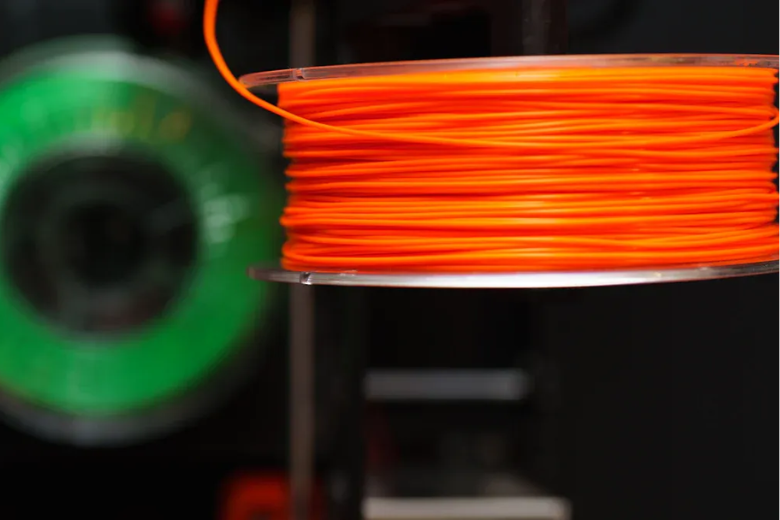
You must store filament correctly to maintain print quality and achieve professional results. Moisture can degrade strong 3d printer filaments, causing brittle prints and poor adhesion. You should use airtight containers to block humidity and protect your filament selection from environmental damage. Place your filament in a cool, dry area, ideally at room temperature between 15°C and 25°C. If you live in a humid region, consider using a filament dryer to remove excess moisture. Regularly inspect your filament for signs of degradation, such as swelling or inconsistent extrusion. These steps support reliable prints and help you avoid common issues with slicer settings.
Tip: Proper storage extends the life of your filament and supports consistent print quality.
Update Software for Optimal Performance
You should update your firmware to access new features and maintain optimal 3d printer speed. Firmware updates often improve security and introduce advanced functions, but some updates may restrict compatibility with third-party software. For example, Bambu Lab requires users to configure devices through a cloud application, which can limit control and raise privacy concerns. Updates may also impose vendor lock-in, affecting user choice and autonomy.
Follow these steps to update your firmware safely:
- Identify your controller board type.
- Check your current firmware version.
- Confirm compatibility with the new firmware.
- Record your preferred parameters.
- Download the latest firmware.
- Upload the firmware to your controller board.
- Connect your hardware.
- Power on your 3d printers.
Note: Regular updates support reliability and unlock new features, but always review update notes to ensure compatibility with your workflow.
You can maintain consistent, high-quality prints by following these five simple steps for your 3d printers. Regular cleaning, calibration, and lubrication routines support reliable results and improved 3d printer speed.
- You reduce downtime and prolong printer lifespan.
- You improve print quality and avoid common issues.
- You support smooth operation and prevent costly repairs.
Adopt these habits into your routine. You will find ongoing maintenance straightforward and rewarding.
FAQ
How often should you adjust your 3D printer settings?
You should review your settings before every print. Material type, layer height, and temperature all affect print quality. Regular adjustments help you maintain optimal speed and consistent performance.
What is the benefit of auto bed leveling?
Auto bed leveling saves you time and improves accuracy. You achieve better adhesion and reduce print failures. This feature helps you focus on other settings for faster printing.
Can changing settings improve print performance?
Yes. You can fine-tune settings like print speed, temperature, and retraction distance. These adjustments enhance performance and help you achieve reliable results with different materials.
Tip: Always record your favourite settings in a notebook or digital file for future reference.
Share:
The Ultimate Checklist for 3D Printer Maintenance
Exploring the Advantages and Disadvantages of 3D Printers