
Introduction
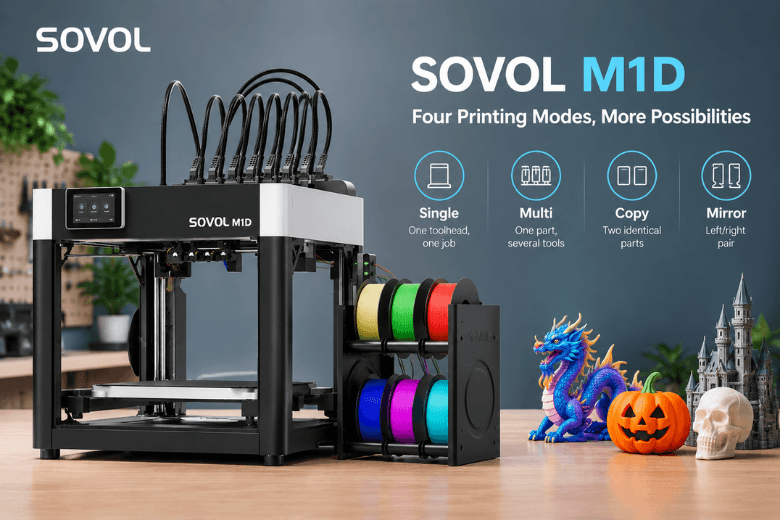
The Sovol M1D has four named printing modes, and Sovol's own specification lists a different build area for each one. For a makerspace lead writing a shortlist or a workshop procedure, that is the practical question: which mode should a given job run in, and what does that choice cost in usable bed?
The modes are not four flavours of the same thing. They are four different ways of using two carriages, one of which is a tool changer. Single and Multi both print one job at a time; Copy and Mirror split the bed and run both carriages in parallel. The headline 300 × 300 × 350 mm figure belongs to Single mode, and the per-part areas in Copy and Mirror come from Sovol's M1D specification, so you can check them before committing a class set.
|
Mode |
In one line |
|---|---|
|
Single |
One toolhead, one job, full bed |
|
Multi |
One part, several tools, used in sequence |
|
Copy |
Two identical parts, printed together |
|
Mirror |
A matched left/right pair, printed together |
Two operational details are worth confirming against the current manual before a workshop relies on them: the exact touchscreen path for selecting a mode, and the rules for pairing different materials in the parallel modes. Neither is settled by the marketing pages.
What the Two Toolheads Actually Are
Every mode is a statement about how two carriages move, so the hardware comes first.
Sovol describes the M1D's DualX arrangement as one independent fixed toolhead plus six interchangeable toolheads docked in a rack, giving up to seven tools in total. Each toolhead heats independently, and Sovol quotes a toolhead swap in as little as five seconds. The two carriages move independently in X while sharing Y — the IDEX premise that BCN3D's IDEX white paper sets out as two print heads moving independently on the X-axis.
That independence is what makes parallel printing possible at all. A conventional dual extruder with two nozzles bolted to one carriage can print two materials on one part, but the nozzles travel together at a fixed distance, so it cannot run two separate parts at once. On the M1D, the mode names exist because the carriages can be told to do different things: work in sequence on one model, or repeat the same toolpath in separate zones of the bed.
One caveat on the five-second figure: it describes the mechanical swap. Total material-transition time can run longer once wiping, priming, extrusion stabilisation and travel between docks are counted.
Single Mode: The Baseline Everything Else Is Measured Against
Single is the reference configuration, and it is the mode the headline 300 × 300 × 350 mm build volume describes. One toolhead prints one job with one profile. For teaching, for first prints, and for any part that needs the full bed, it is the sensible default.
The case for keeping Single as a workshop's known-good standard is about variables, not capability. One extrusion path to validate, one filament, one set of settings — when a print fails, the list of suspects is short. That matters in a shared space where the person debugging the failure is often not the person who set the job up.
The other three modes are variations on this baseline. A machine that cannot print reliably in Single will not print reliably in the others, and Sovol's own guidance for Copy mode makes the same point from the other direction: if you would not trust the part to run unattended in Single, it is not a good first Copy job.
Multi Mode: One Part, Several Tools, Sequential Not Simultaneous
The most common misreading of the M1D is that "Multi" means both heads extruding on the same model at once. Sovol answers this directly on its product page: when printing a single multi-colour or multi-material model, the toolheads typically work in sequence along the sliced toolpath rather than extruding on the same model simultaneously.
What the tool changer buys in that sequence is the absence of the usual colour-change cycle. Colours and materials stay loaded in dedicated toolheads and preheat independently, so a change is a swap to an already-warm tool rather than a purge-and-reload through one nozzle. Sovol frames the result as near-zero purge waste, with only a small amount of filament needed for wiping or priming — a claim that follows from the mechanism, though actual results vary by model, material and slicer settings.
Sovol's makerspace guide quotes an approximate working overlap of around 240 × 300 × 350 mm for multi-tool jobs. Read that as a shared working area for the job, not a per-part figure: it is not the size of a single part you can print in Multi, and it should not be substituted for the Single-mode envelope when checking whether a model fits.
The practical conclusion is that Multi is the mode for a part that genuinely needs two filaments — model plus soluble support, rigid plus flexible, two colours — not a throughput mode. If the job is one material, Multi adds tool changes without adding output.
Copy Mode: Two Identical Parts, Printed Together
In Copy mode, both carriages run the same toolpath in parallel, each in its own zone of the split bed, producing two identical parts in one job. OrcaSlicer slices the part once for the primary tool and the firmware drives the second carriage to repeat those moves in its own zone.
The cost is bed width. Sovol's specification gives Copy mode as 178 × 300 × 350 mm per part, so each copy is narrower than a Single-mode print. A model whose widest point exceeds that will not slice in Copy — the fix is to reorient or rescale the part, not to override the setting.
The throughput question deserves a conditional answer. Copy mode can nearly double throughput for parts that fit, but it does not make a single part print faster; the saving is "two parts for close to the time of one," and the real figure depends on geometry, motion limits, cooling, tool changes and settings. BCN3D's white paper illustrates the principle under its own conditions: in its print farm, duplication mode produced 500 face shields per machine per month instead of 250, with the quoted print time falling from 1 h 40 min to 50 min. Those are BCN3D's parts on BCN3D's machine — useful evidence that the mechanism works, not a forecast for the M1D.
One dependency to plan for: parallel printing punishes any mismatch between the two extrusion paths. A first-layer difference that is tolerable on one part becomes two visibly different parts in Copy.
Mirror Mode: A Left and a Right in One Job
Mirror mode runs the same toolpath, but the second carriage's copy is reflected across the boundary with the first carriage's zone. The output is a matched pair — a left and a right — rather than two identical parts.
The usable width is tighter than Copy. Sovol's guide quotes roughly 138–140 mm per part against Copy's 178 mm. The reason is geometric: mirrored carriages move toward each other, so the slicer reserves a clearance strip at the boundary that Copy, where the carriages move together, does not need. OrcaSlicer's IDEX/IQEX documentation describes exactly this — a strip drawn inside the primary zone beside a Mirror boundary, and no strip for Copy because those carriages cannot collide. Other IDEX vendors document the same narrower mirror boundary; Raise3D, for example, notes that the print border is slightly smaller in Mirror mode than in Duplication mode and that slicing fails if a model exceeds it.
The fit check follows from that: measure the widest point of the part, not its average width, before committing a workshop job to Mirror. A bracket with one flared flange can exceed 140 mm while most of its body sits well inside it.
Which Mode for Which Job
Four scenarios cover most of what a shared workshop actually prints. The recommendations below are workflow judgement, not manufacturer requirements.
Usable X width per part by mode, from Sovol's published M1D specifications. These are vendor figures for X only (Y × Z is 300 × 350 mm in every mode); Copy and Mirror values are per part, with two parts printed concurrently. The Multi figure of ~240 mm is a shared working overlap that applies only when both carriages must reach the same model, not a per-part envelope. Mirror is narrower than Copy because the slicer reserves a toolhead-clearance strip at the boundary where mirrored carriages converge.
Teaching beginners: Single. One profile, one filament, one extrusion path to debug. When a new member's print fails, the failure teaches something about the machine rather than about tool-change interactions.
Batch spares and class sets: Copy. Two identical parts per job, provided the part fits within 178 mm at its widest point and the two nozzles have been proven to match. This is where Copy earns its place — a set of twenty brackets becomes ten jobs.
Left/right assemblies — brackets, handles, mirrored enclosures: Mirror. One job produces the pair, which also means the two halves share the same filament, settings and session. Check the narrower boundary first.
A part that needs two materials or a soluble support interface: Multi. Sequential tool use on one model, with each material in its own toolhead.
|
Mode |
What moves |
Per-part area |
Best use |
|---|---|---|---|
|
Single |
One carriage prints |
300 × 300 × 350 mm |
Teaching, full-bed parts, known-good baseline |
|
Multi |
Carriages work in sequence on one part |
~240 × 300 × 350 mm shared working overlap |
Multi-material parts, soluble supports |
|
Copy |
Both carriages repeat the same toolpath in parallel |
178 × 300 × 350 mm per part |
Identical batches, class sets, spares |
|
Mirror |
Both carriages run the toolpath, second reflected |
~138–140 × 300 × 350 mm per part |
Left/right pairs, symmetric assemblies |
Areas follow Sovol's M1D specification and makerspace guide; the Multi figure is a working overlap rather than a per-part envelope.
Before You Trust a Dual-Head Mode: Setup and Calibration
Parallel modes double the number of things that must agree, so the pre-flight routine is about proving agreement before the job starts. This is a checklist a workshop can adopt, not a claim that the machine's automation removes the need for it.
-
Prove each tool individually in Single mode first. A toolhead that misbehaves on its own will misbehave in parallel, with a second copy of the defect alongside it.
-
Confirm bed leveling and matched nozzle Z height between the two heads. MatterHackers names bed leveling and identical nozzle Z height as baseline calibration for duplication and mirror modes, and Sovol's Copy-mode guide repeats the point.
-
Run the XY offset calibration between toolheads. Sovol's Auto Vision Calibration uses camera feedback to set XY offsets and is quoted as up to 2.5× faster than probe-based setup, with automatic real-time Z compensation for the second toolhead. Clean nozzle exteriors before calibrating — residue corrupts the measurement itself.
-
Dry borderline filament. Duplication punishes stringy material, and two copies of a stringing problem is twice the cleanup.
-
Check the sliced preview for placement against the clearance strips. The slicer keeps parts out of the strips, but it does not check each layer's moves for collisions; leave room at the zone edges.
Two structural limitations are worth knowing. Duet3D's IDEX configuration note observes that bed compensation can only correct nozzle height at a single X position, so a bed that is good enough for one tool can still cause trouble in parallel modes. And because toolpaths are not collision-checked layer by layer, the slicer's placement check is a guard rail rather than a guarantee.
A useful habit from Sovol's Copy-mode guidance: treat two copies in one run as an A/B sanity check. If both parts show the same defect, suspect the model or settings; if only one does, suspect the second extrusion path.
Switching Modes in Practice
The mode decision lives in two places, and it helps to keep them separate.
In the slicer, OrcaSlicer exposes parallel modes as a per-plate mode selection. The Modes grid defines the parallel modes available on each plate: each row is a mode, with a role for every tool and the G-code that tells the firmware which mode to run. OrcaSlicer writes that G-code just before the machine start G-code — it does not move the carriages itself. The firmware has to support copy and mirror modes for the job to run at all.
On the machine, Sovol presents the four modes as selectable on the M1D, with a 5-inch touchscreen running a redesigned interface. The exact touchscreen path should be confirmed against the current manual or Sovol's downloads page before a workshop writes it into a procedure; menu layouts change between firmware versions, and a procedure that quotes the wrong button wastes a member's afternoon.
One practical consequence of how the slicer handles parallel modes: in a parallel print, OrcaSlicer leaves out the usual tool change to T0 at the start of the print, so the mode G-code or the start G-code has to select it. A job that slices cleanly but starts on the wrong tool is usually this, not a hardware fault.
Key Takeaways
-
Single is the full 300 × 300 × 350 mm baseline and the right default for teaching and first prints.
-
Multi is sequential tool use on one part, not simultaneous extrusion, with an approximate 240 × 300 × 350 mm shared working overlap.
-
Copy prints two identical parts at up to 178 mm wide each.
-
Mirror prints a matched pair at a narrower boundary — roughly 138–140 mm per part — because the carriages converge.
-
Copy and Mirror raise throughput for parts that fit but do not make a single part print faster.
-
Both parallel modes depend on matched Z height, XY offset calibration and dry filament.
Frequently Asked Questions
What does each mode do to the two toolheads? Single uses one toolhead. Multi uses several toolheads in sequence along the sliced toolpath on one model. Copy and Mirror run both carriages in parallel, each in its own zone of the split bed.
How much bed is lost in Copy and Mirror, and why is Mirror narrower? Copy gives 178 × 300 × 350 mm per part; Mirror gives roughly 138–140 × 300 × 350 mm. Mirror is narrower because mirrored carriages move toward each other, so the slicer reserves a clearance strip at the boundary that Copy does not need.
Does Copy halve the time for a batch? It can nearly double throughput for parts that fit, but it does not make a single part print faster. The actual saving depends on geometry, motion, cooling and settings.
Can the two heads run different materials in Copy or Mirror? The sources establish that Copy and Mirror divide the X-axis width between the two toolheads and that both carriages share printing parameters in duplication-style workflows. Whether a specific material pair is supported in the M1D's parallel modes should be confirmed against Sovol's current documentation rather than assumed from the multi-material capability in Multi mode.
Which mode suits teaching, batch spares and left/right assemblies? Single for teaching, Copy for batch spares that fit 178 mm, Mirror for left/right pairs that fit the narrower boundary, and Multi for parts that need two materials.
What calibration should come first? Prove each tool in Single, confirm bed leveling and matched nozzle Z height, run the XY offset calibration, dry borderline filament, and check the sliced preview against the clearance strips.
How are modes switched? In OrcaSlicer, as a per-plate mode selection that writes mode G-code for the firmware; on the machine, through the M1D's controls. Confirm the exact touchscreen path in the current manual before relying on it.
Share:
7 Colors, 7 Materials, Less Waste: How the Sovol M1D Changes Multi-Material Printing