
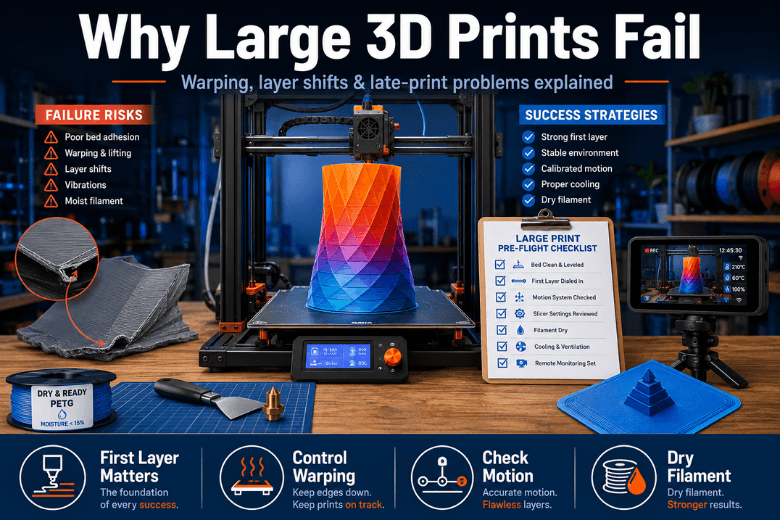
Large prints aren’t “cursed”. They’re just longer bets.
A 40‑minute part can tolerate a slightly off Z‑offset, a mildly damp spool, or a bit too much acceleration. A 14‑hour part can’t. When you’re dealing with long 3D prints failing late in the job, it’s usually because the longer the print runs (and the taller/heavier the part gets), the more chances you have for one small weakness to snowball into a failure.
Key takeaways
-
Long prints fail more often because risk compounds: more hours = more exposure to clogs, collisions, power blips, temperature swings, and gradual drift.
-
Size changes the physics: big flat bases warp more because shrink stress has more area to pull on, and tall parts add leverage that makes nozzle bumps and vibration more dangerous.
-
Reliability is mostly about fix order: get the first layer and environment stable before you chase exotic slicer tweaks.
-
The highest ROI habit for makerspaces: run a short “profile validation print” before committing to an overnight job.
Why large 3D prints fail: the compounding-risk effect
When UK maker community leaders say “our big prints fail more,” they’re usually describing two forces working together:
-
Time at risk: the printer has to behave for longer. Bearings warm up, a filament tangle has more time to happen, a partial clog has time to become a full clog, and a tiny draft becomes hours of uneven cooling.
-
Geometry stress: large prints create bigger thermal gradients and bigger forces.
-
A large, flat base gives shrinkage more leverage to pull corners upward (3D print warping).
-
A tall, narrow print is easier to wobble, and a small nozzle collision can become a 3D print layer shift.
-
The trick is not to “print slower forever.” It’s to remove the compounding risks.
Failure mode 1: the first layer has to survive for hours
On a small print, bed adhesion is an early checkpoint. On a large print, it’s a long-term contract.
If the first layer is only just sticking, the part can still fail later as:
-
the model gets heavier,
-
corners start to lift,
-
the nozzle begins to brush a curled edge,
-
or the print cools unevenly.
A helpful mindset from the community is that late failures often trace back to a weak foundation — including first-layer issues that weren’t obvious in the first 10 minutes (see the troubleshooting logic in this Prusa forum thread on longer prints failing).
A fix order that actually works (especially on shared printers)
Sovol UK’s guidance is unusually clear here: treat adhesion like a process — clean → test → Z‑offset → temps → slicer tweaks — and don’t skip ahead.
If you want the full step-by-step, use Sovol UK’s first-layer adhesion checklist. The short version:
-
Clean the bed properly (soap + water for PEI when needed; avoid finger oils).
-
Print a one-layer test (a small square/pattern).
-
Live-adjust Z-offset in tiny steps until lines are continuous and lightly “squished.”
-
Only then adjust temperatures (small steps), then slicer settings.
Pro Tip: In a makerspace, standardise a “first-layer test file” on every SD card. It’s the fastest way to stop beginners from starting a 12‑hour job with a bad Z-offset.
Failure mode 2: large parts warp because shrinkage finally has leverage
Warping isn’t mysterious. As plastic cools, it shrinks. If different areas cool at different rates, internal stress builds until corners lift.
Simplify3D explains warping in plain terms: it’s driven by shrinkage as the plastic cools (their Warping troubleshooting guide is a solid reference). Obico also notes that large flat surfaces are simply more prone to warping in its 3D print troubleshooting guide.
What makes warping worse on large prints
-
Large flat bases (more area contracting)
-
Sharp corners (stress concentrators)
-
Drafts / cold rooms (uneven cooling)
-
Materials with higher shrink (e.g., ABS/ASA)
-
Overcooling early layers (fan too aggressive too soon)
What to do (in priority order)
-
Stabilise the environment
-
Keep the printer away from doors/windows.
-
If you use an enclosure, remember it’s a trade-off: it helps warping, but can raise chamber temperature (we’ll come back to why that matters for clogs).
-
-
Increase bed “holding power” before changing the whole profile
-
Brims are boring, but effective.
-
If your material likes it, bump bed temp slightly after cleaning and Z-offset are correct.
-
-
Reduce the forces that create stress
-
Don’t overdo infill on big flat parts.
-
Consider geometry edits (chamfered corners, smaller contact patches) if the part design allows it.
-
⚠️ Warning: With PETG, “more adhesion” can become too much adhesion on some surfaces. In shared setups, having a standard rule (and teaching it) matters more than the perfect one-off trick.
Failure mode 3: layer shifts are often a collision problem in disguise
Layer shifts are commonly blamed on “speed,” but on long prints the trigger is often a collision: the nozzle catches a curled edge, a blob, or a lifted corner; the axis skips a step; and the rest of the job is misaligned.
If you need one reference to hand to a volunteer who’s troubleshooting, Simplify3D’s Layer Shifting troubleshooting guide is a useful checklist source.
The big-print layer shift checklist
-
Lower acceleration before you lower speed
-
Acceleration is what creates the “shock loads” that make steps skip.
-
-
Check belts and pulleys like you mean it
-
Loose pulleys can mimic random ghosts in your prints.
-
Uneven belt tension makes motion inconsistent.
-
-
Reduce collision opportunities
-
If overhangs curl, adjust cooling/temperature rather than hoping the nozzle will miss it for 10 hours.
-
Consider Z-hop only when it actually reduces strikes (it can add time and sometimes stringing).
-
-
Watch for cable drag at a specific Z height
-
In shared setups, cable routing gets “adjusted” over time. Tall prints will find that weak point.
-
Failure mode 4: heat creep and slow clogs show up late
A common frustration is: “It printed great for six hours… then it suddenly stopped extruding.”
One explanation is heat creep 3D printing: heat migrates upward in the hotend so filament softens too early and jams.
Fictiv breaks down the causes and prevention levers (hotend cooling health, not running hotter than you need, and controlling ambient heat) in its heat creep explainer.
The non-obvious long-print trap: “enclosure helped… until it didn’t”
Enclosures reduce warping, but they also raise chamber temperature. If your chamber is warm enough, the “cold side” of the hotend is simply less cold — and long jobs become more sensitive to marginal cooling.
So the best practice is material-specific:
-
For warp-prone materials: enclosure can be a win.
-
For PLA in warm rooms: you may need ventilation or a cooler chamber to keep extrusion stable.
Practical prevention for makerspaces
-
Do a hotend “health check” before overnight prints: fan running, heatsink not clogged, nozzle not visibly worn.
-
Avoid running hotter than you need: the minimum temperature that prints cleanly is often the most stable over 10+ hours.
-
Treat filament storage as reliability control: a clean first layer won’t save you from a filament snag or inconsistent extrusion.
If your community struggles with moisture-related issues, a dedicated drying workflow (and a consistent storage rule) usually pays for itself in reduced downtime. A simple starting point is a dryer you can standardise across spools (see Sovol UK’s filament dryer collection).
A 15-minute pre-flight checklist for large prints
This is the “maker leader” version: not perfect, just high-yield.
-
Bed and first layer
-
Bed cleaned
-
One-layer test passed
-
Z-offset verified
-
-
Environment
-
No direct drafts
-
Enclosure decision made (and if enclosed, chamber temperature won’t cook PLA)
-
-
Filament path
-
Spool rolls freely
-
No tangles or sharp bends
-
Filament condition known (dry if needed)
-
-
Motion system
-
Belts/pulleys visually checked
-
No cable drag in the expected Z range
-
-
Slicer sanity
-
Conservative acceleration
-
Brim enabled if the base is large and corners are sharp
-
Travel moves not constantly crossing fragile features
-
-
Operational plan
-
First 10 minutes observed
-
If possible: remote viewing
-
For a deeper calibration routine you can hand to new operators, link out to a single internal reference such as Sovol UK’s calibration guide for better print quality.
When you should split the model (and when you shouldn’t)
Splitting isn’t a “beginner move.” It’s a reliability strategy.
Consider splitting when:
-
the part is tall and narrow (wobble/leverage risk),
-
the footprint is huge and warping is the main failure mode,
-
a single failure would waste a lot of filament and machine time.
Avoid splitting when:
-
the joint would land on a high-stress mechanical feature,
-
alignment matters more than the time saved,
-
you’ll create more post-processing risk than printing risk.
If large-format printing is a frequent need in your community, it’s worth reviewing the practical constraints (space, ventilation, workflow) in Sovol UK’s large build volume selection guide.
Next steps
If you run a makerspace (or you’re the person everyone asks when prints fail), the fastest win is to formalise two files:
-
a first-layer test print for every machine
-
a large-print pre-flight checklist like the one above
If you’re evaluating printers for long, high-success-rate jobs, look for features that reduce the compounding risks: consistent first layers, stable motion, and a setup that’s easy to standardise across multiple users.
If you want to explore UK-stocked options with local support, start at Sovol.
Share:
Buying a 3D Printer in the UK: Delivery, Warranty and Support Explained
When Filament Becomes Freedom: A Maker’s 3D Printed Mobility Trainer Built with Sovol Gradient Green PETG