
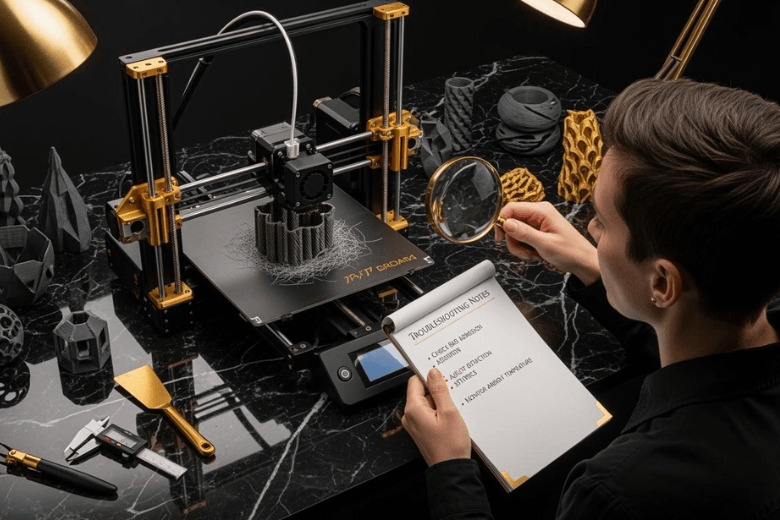
Have you ever watched your print fail halfway and wondered why 3D Printing Problems keep interrupting your projects? You know the feeling—hours wasted and materials lost. Quick fixes often make the difference between a successful print and a pile of plastic scraps. You do not need advanced skills to resolve most issues. With a few simple steps, you can get back to printing confidently.
Key Takeaways
-
Identify common 3D printing problems by observing symptoms like layer separation, gaps, and poor adhesion. Early detection simplifies troubleshooting.
-
Understand the main causes of issues such as over-extrusion and under-extrusion. Recognising these allows for targeted fixes and better print quality.
-
Follow systematic troubleshooting steps, including checking bed level, cleaning the nozzle, and adjusting temperature settings. Consistent practices lead to improved results.
-
Maintain your printer regularly by cleaning components and calibrating settings. Good maintenance prevents many common printing failures.
-
Document your troubleshooting steps and results. Keeping a log helps streamline future troubleshooting and enhances your 3D printing skills.
Common 3D Printing Problems Overview
You will encounter a range of 3d printing problems as you develop your skills. These issues can disrupt your workflow and waste valuable materials. Understanding the most common 3d printing problems helps you approach troubleshooting with confidence. This guide will walk you through the key symptoms, main causes, and quick troubleshooting steps for the most frequent issues.
Key Symptoms
You can identify 3d printing problems by observing your prints closely. The table below outlines the most common symptoms you may notice during a print:
|
Visible layer lines, rough walls |
|
Repeating patterns, ripples on walls |
|
Gaps or weak walls |
|
Missing details, rough small features |
|
Thin and thick lines, gaps |
|
Incomplete top layers, gaps |
|
Rough underside, blobs on model |
|
Parts too large or small, misaligned holes |
|
Sagging lines across gaps |
|
No extrusion, clicking sounds |
|
Echoes or shadows appear on walls |
|
Layers separate easily, weak vertical strength |
|
Shredded filament, under-extrusion |
|
Visible holes, weak internal structure |
|
Warped corners, uneven edges |
|
Rough, bumpy top surfaces |
|
Empty corners, weak base |
You should pay attention to these signs during every print. Early detection makes troubleshooting 3d printing much easier.
Main Causes
You will find that most 3d printing problems stem from a few main causes:
-
Over or under-extrusion often results from incorrect programming or settings.
-
Layer splitting happens when layers do not adhere, usually due to temperature issues.
-
Stringing appears when high temperatures and pressure cause plastic threads to form.
-
Messy surfaces or spider nets develop if the print lacks proper support.
-
Separated layers occur when the print temperature is too low.
-
Inconsistent extrusion points to a clogged print head.
Recognising these causes allows you to target your troubleshooting 3d printing efforts effectively.
Quick Troubleshooting Steps
You can resolve many common 3d printing problems with a systematic approach. Follow these steps for efficient troubleshooting:
-
Always start with a levelled bed to ensure proper adhesion.
-
Pause and inspect your print if you notice any structural issues.
-
Check infill, cooling, and wall settings to prevent collapsing or weak prints.
-
Clean the print bed thoroughly with isopropyl alcohol to remove contaminants.
-
Slow down the first layer speed to help the filament stick better.
Tip: Address failed prints by pausing and inspecting, and resolve poor bed adhesion by cleaning and levelling the bed.
You will find that consistent troubleshooting 3d printing practices reduce failed prints and improve your results. This guide will cover each problem in detail, helping you master troubleshooting for all common 3d printing problems.
First Layer Adhesion Issues
Symptoms
You will often notice a poor first layer when the print doesn’t stick to the bed. Common symptoms include:
-
Poor bed adhesion, where the print lifts or shifts during the process
-
Curling or peeling off at the corners, leading to edges lifting off the bed
-
Detachment of the part during printing
-
Uneven extrusion, resulting in gaps or a rough first layer
-
Warping edges and parts failing to start cleanly
-
Lack of support under the first layer, causing instability
These signs indicate that your print may not succeed unless you address the adhesion problem immediately.
Causes
Several factors can lead to a poor first layer. The table below outlines the most frequent causes and their explanations:
|
Factor |
Explanation |
|---|---|
|
The filament may not melt enough to bond, causing poor first layer adhesion. |
|
|
Fast Printing Speeds |
High speeds prevent proper bonding, resulting in a poor first layer and lack of support. |
|
Inadequate Bed Adhesion |
The print doesn’t stick, leading to shifting and delamination, especially with materials prone to warping. |
|
Poor Layer Cooling |
Excessive cooling causes the filament to solidify too quickly, reducing adhesion. |
|
Environmental Factors |
Drafts, cold temperatures, or humidity can cause a poor first layer and edges lifting off the bed. |
How to Fix
You can resolve poor first layer adhesion by following these steps:
-
Clean the print bed thoroughly with isopropyl alcohol to remove dust and grease.
-
Level the bed and calibrate the nozzle height for even pressure on the first layer.
-
Slow down the first layer speed to 20-30 mm/s to improve bed adhesion.
-
Use a brim, raft, or skirt to increase surface area and enhance adhesion.
-
Adjust the bed temperature according to your filament type for optimal bonding.
-
Choose the right build surface for your material.
-
Apply adhesion aids, such as glue sticks, if needed.
-
Optimise cooling fan settings, especially for the first few layers.
-
Monitor the environment to avoid drafts and temperature fluctuations.
Tip: If your print doesn’t stick, always check the bed adhesion and first layer settings before restarting.
Prevention
You can prevent poor first layer adhesion by maintaining your printer and environment. The table below summarises key preventative measures:
|
Problem Description |
Solution |
|---|---|
|
Soiling or residue on the bed |
Clean the platform with isopropanol and keep it grease-free. |
|
Damaged or dirty build surface |
Inspect and clean regularly; replace if necessary. |
|
Smooth build platform |
Lightly roughen with fine sandpaper, then clean thoroughly. |
|
Incorrect bed levelling |
Calibrate using a sheet of paper or calibration card for the correct first layer distance. |
|
Too short exposure or too few base layers |
Increase exposure time and base layer thickness as needed. |
|
Insufficiently mixed or cold material |
Mix or preheat material to ensure consistent adhesion. |
|
Lack of support for the first layer |
Use brims or rafts to provide extra support and improve bed adhesion. |
Consistent maintenance and careful setup will help you avoid poor first layer problems and ensure reliable prints.
Warping and Curling
Symptoms
You may notice several signs when warping or curling affects your 3D prints. The most common symptoms include:
-
Edges of the print lift off the bed, especially at corners.
-
Parts detach or shift during printing, causing failed prints.
-
Supports break or curl, leading to instability in overhanging sections.
|
Symptoms |
Causes |
|---|---|
|
Warping |
Heat-management problem; plastic shrinks as it cools, pulling edges up. |
|
Temperature changes and uneven contraction. |
|
|
Curling |
Bed adhesion issues, rapid cooling, or failed supports. |
Note: Warping often starts subtly. You should check the print regularly, especially during the first few layers.
Causes
Warping usually results from temperature changes during the printing process. Thermoplastics expand when heated and contract as they cool. This movement causes the edges to lift. High temperature materials, such as ABS, are more prone to warping. Large or long prints face greater risks because temperature control becomes more difficult. Rapid cooling, drafts, or breezes can make warping worse. If the bed is not heated, the first layer cools too quickly and loses adhesion. Curling often appears when the cooling rate varies across the print, with thin areas cooling faster than thick ones.
How to Fix
You can address warping and curling by following these steps:
-
Maintain a stable extrusion temperature. For ABS, keep it between 230 and 260°C.
-
Use a heated bed. Set the plate to 80–130°C for ABS to reduce rapid cooling.
-
Install a closed or heated enclosure to protect the print from air currents and temperature swings.
-
Adjust fan settings to avoid excessive cooling, especially for the first few layers.
-
Reduce layer height to improve adhesion between layers and minimise curling.
-
Apply adhesives or use a brim to increase bed contact.
Tip: Consistent temperature control is the most effective way to prevent warping and curling.
Prevention
You can prevent warping by preparing your printer and environment carefully:
-
Preheat the bed before starting each print.
-
Avoid placing the printer near open windows or vents.
-
Use materials with lower shrinkage rates for large prints.
-
Monitor the print for early signs of curling or lifting.
-
Regularly calibrate the bed and check for even surface contact.
By following these steps, you will reduce the risk of warping and achieve more reliable, high-quality prints.
Stringing and Oozing
Symptoms
You often spot stringing and oozing when thin strands of plastic stretch between parts of your print. These defects appear as wispy threads that connect separate sections. You may also notice surface defects, which look like small bumps or rough patches. Poor layer adhesion sometimes results from steam bubbles disrupting the flow of plastic, leaving visible defects on the print.
-
Thin strands of plastic between printed parts
-
Surface defects such as bumps or rough patches
-
Poor layer adhesion and visible defects caused by steam bubbles
Note: Early detection of these defects helps you maintain print quality and avoid further issues.
Causes
You encounter stringing and oozing due to several factors. The table below outlines the main causes and their explanations:
|
Cause |
Explanation |
|---|---|
|
High temperatures make the filament more liquid, leading to oozing and stringing. |
|
|
Retraction Settings |
Low retraction settings allow filament to drip from the nozzle during non-printing moves. |
|
Travel Speed |
Slow travel speeds give filament more time to ooze out of the nozzle. |
|
Material Properties |
Certain materials, like TPU, have higher stringing tendencies due to their flow characteristics. |
|
Nozzle Condition |
Worn or damaged nozzles can’t control material flow effectively, increasing stringing. |
You must address these causes to reduce defects and improve your print results.
How to Fix
You can fix stringing and oozing by adjusting your printer settings and maintaining your equipment. Try the following techniques to minimise defects:
-
Increase retraction settings and speed to pull back filament from the nozzle.
-
Lower the printing temperature to reduce material flow and minimise stringing.
-
Increase travel speed to reduce time spent between printed parts during non-printing movements.
-
Use wiping and coasting methods to stop oozing and reduce pressure in the nozzle.
-
Consider using a different brand of filament that produces fewer defects.
-
Replace the nozzle if it is old, worn out, or damaged to prevent defects.
Tip: Regularly check your nozzle and filament quality to avoid recurring defects.
Prevention
You prevent stringing and oozing by maintaining your printer and optimising your settings. Clean your nozzle regularly to avoid defects caused by residue. Store filament in a dry environment to prevent moisture-related defects. Test new filament brands before starting large projects. Adjust retraction and temperature settings for each material to reduce defects. Monitor your prints closely during the first few layers to catch defects early. Use a calibration print to fine-tune your settings and minimise defects.
Consistent maintenance and careful calibration help you avoid defects and achieve high-quality prints.
Under-Extrusion Troubleshooting
Under-extrusion stands out as one of the most common fdm 3d printing problems you will encounter. You need to master 3d printing troubleshooting to maintain consistent print quality. This 3d printer troubleshooting guide will help you identify, fix, and prevent under-extrusion, ensuring your projects succeed.
Symptoms
You can spot under-extrusion by observing your prints for these signs:
-
Gaps in layers that weaken the structure
-
Weak walls that break easily
-
Missing print segments that disrupt the model
You should always include these checks in your 3d print troubleshooting routine. Early detection makes troubleshooting more effective.
Causes
Several factors can lead to under-extrusion. You must understand these causes to apply the right 3d printing troubleshooting steps:
-
A partially clogged or blocked nozzle restricts filament flow.
-
Incorrect flow rate settings in your slicer software reduce material output.
-
Uncalibrated extruder steps/mm cause the printer to push too little filament.
-
Low-quality or moisture-damaged filament jams or grinds in the extruder.
-
Inconsistent filament diameter creates irregular extrusion patterns.
-
Too low print temperature prevents proper melting and flow.
-
Extruder motor issues, such as slipping gears or tension problems, disrupt feeding.
You will find that inconsistent extrusion often results from a combination of these issues. This 3d printer troubleshooting guide addresses each one.
How to Fix
You can fix under-extrusion by following a systematic 3d print troubleshooting process:
-
Clean or replace the nozzle. Inspect for clogs and use a needle or cold-pull method.
-
Calibrate your extruder steps/mm. Ensure the extruder pushes the correct amount of filament.
-
Check and correct your flow rate. Adjust the flow rate in your slicer software to 100% or as needed.
-
Use high-quality filament. Opt for premium materials to avoid extrusion issues.
-
Dry your filament. Store in dry containers or use a filament dryer to prevent moisture absorption.
-
Adjust print temperature. Increase the nozzle temperature in increments of 5°C if too low.
-
Check for extruder tension and wear. Ensure the extruder gear grips the filament properly.
Tip: Always document your 3d print troubleshooting steps. This habit streamlines future troubleshooting and helps you build your own 3d printer troubleshooting guide.
Prevention
You can prevent under-extrusion by making 3d print troubleshooting part of your regular maintenance. Store filament in a dry place and check for diameter consistency before each print. Calibrate your extruder and flow rate settings regularly. Clean the nozzle and extruder gear as part of your 3d printer troubleshooting guide. Monitor print temperature and adjust for each filament type. By following these 3d printing troubleshooting practices, you will avoid many common fdm 3d printing problems and achieve reliable results.
Consistent 3d print troubleshooting ensures your printer performs at its best and reduces failed prints.
Over-Extrusion Issues
Symptoms
You will notice over-extrusion when your prints show excess material on the surface. Common symptoms include thick or bulging layers, stringy or blobby surfaces, and loss of fine detail. Sometimes, you will see filament oozing from the nozzle even when the printer is not actively extruding. Prints may feel soft or sticky, and corners can appear rounded instead of sharp. Over-extrusion often leads to poor dimensional accuracy, making parts difficult to fit together.
Tip: If your print looks swollen or details appear blurred, over-extrusion is likely the cause.
Causes
Several factors can cause over-extrusion in your 3D prints. You should check the following common issues:
-
Excessive printing temperature makes the filament too fluid, causing uncontrolled flow.
-
Incorrect filament diameter settings allow too much material to pass through the nozzle.
-
Improper calibration of the flow rate pushes excessive filament during printing.
You can often resolve over-extrusion by addressing these specific areas.
How to Fix
You can fix over-extrusion by making targeted adjustments to your printer settings. Follow these steps for best results:
-
Reduce the print temperature in small increments, such as 5°C, to prevent excessive material flow.
-
Measure your filament diameter with callipers and update your slicer settings to match the actual size.
-
Adjust the extrusion multiplier (also called flow rate) in your slicer. Lower it by 2.5% to 5% and test the results with a calibration print.
Note: Always make one change at a time and observe the impact on your next print.
Prevention
You can prevent over-extrusion by maintaining your printer and checking your settings before each print. Store filament in a dry place to avoid swelling. Regularly calibrate your extruder and measure filament diameter for every new spool. Use the recommended temperature range for your filament type. Keep your slicer software updated to access the latest calibration tools. By following these steps, you will achieve cleaner prints and more accurate results.
Layer Shifting
Symptoms
You will notice layer shifts when your print suddenly misaligns during the process. The most obvious sign appears as a visible step or offset in the print, where the layers no longer line up. Sometimes, you see repeated shifts, creating a staircase effect. You may also find that holes, text, or features do not match their intended positions. These errors often ruin the mechanical function and appearance of your model.
Tip: Always check your print for sudden changes in alignment or repeated steps. Early detection helps you avoid wasted material.
Causes
Layer shifts usually result from mechanical or electronic issues. You may encounter these common causes:
-
Loose belts or pulleys allow the print head to move unpredictably.
-
Obstructions on the rails or debris on the bed cause the nozzle to skip steps.
-
Stepper motors overheat or lose power, leading to a shift in layers.
-
Print speed set too high increases the risk of missed steps.
-
Sudden bumps or collisions with curled-up prints force the head to shift.
The table below summarises the main causes and their effects:
|
Cause |
Effect on Print |
|---|---|
|
Loose belts |
Random layer shifts |
|
Obstructions |
Sudden shift in layers |
|
Motor issues |
Repeated or single shifts |
|
High print speed |
Multiple layer shifts |
|
Collisions |
Abrupt misalignment |
How to Fix
You can fix layer shifts by addressing the root mechanical or electronic problems:
-
Tighten all belts and pulleys. Use the correct tension for your printer model.
-
Clean the rails and bed. Remove any dust, filament, or debris.
-
Lower the print speed in your slicer settings. Start with 40–60 mm/s for most printers.
-
Check the stepper motor drivers. Ensure they do not overheat and supply enough current.
-
Inspect the print area for curled edges or obstacles that could cause collisions.
-
Lubricate moving parts with a suitable grease to reduce friction.
Note: Always power off your printer before making mechanical adjustments.
Prevention
You can prevent layer shifts by following a regular maintenance routine:
-
Inspect and tighten belts before each print.
-
Clean the rails and bed after every project.
-
Monitor motor temperature during long prints.
-
Use moderate print speeds to reduce stress on the machine.
-
Place your printer on a stable, vibration-free surface.
Consistent care and attention to detail will help you avoid a shift in layers and ensure accurate, reliable prints.
Clogged Nozzle
Symptoms
You will recognise a clogged nozzle when your printer stops extruding plastic. The most obvious symptom appears as no filament coming out of the nozzle during printing. Sometimes, you see inconsistent extrusion, gaps in layers, or weak prints. You may hear clicking sounds from the extruder motor. The print may start but quickly fail as the nozzle becomes blocked. If you notice rough surfaces or missing sections, you should suspect a clogged nozzle.
Note: Early detection of extrusion problems helps you avoid wasted material and failed prints.
Causes
A clogged nozzle results from several factors. You often encounter blockages due to burnt filament residue or dust. Low-quality filament increases the risk of clogging. Moisture in the filament causes swelling and jams. Printing at too low a temperature leaves unmelted material inside the nozzle. Frequent material changes without proper cleaning also lead to a clogged nozzle. The table below summarises the main causes:
|
Cause |
Description |
|---|---|
|
Burnt residue |
Old filament burns and blocks the nozzle |
|
Dust or debris |
Contaminants enter and clog the nozzle |
|
Moist filament |
Swelling causes jams and blockages |
|
Low print temperature |
Filament fails to melt and clogs the nozzle |
|
Frequent material changes |
Residue builds up and causes clogging |
How to Fix
You can fix a clogged nozzle by following a systematic approach. Start by heating the nozzle to the recommended temperature for your filament. Use a cold-pull technique with nylon or cleaning filament to remove blockages. If the nozzle remains clogged, use a fine needle to clear the tip. Remove the nozzle and soak it in acetone if you print with ABS. Replace the nozzle if cleaning fails. You should always document your steps as part of troubleshooting 3d printer issues.
Tip: Regular cleaning and maintenance prevent most clogging problems.
Prevention
You prevent a clogged nozzle by maintaining your printer and using quality materials. Store filament in dry containers to avoid moisture. Clean the nozzle after every material change. Use premium filament to reduce residue and dust. Check print temperature settings before each job. Inspect the nozzle regularly for signs of wear or clogging. By following these steps, you minimise downtime and improve print reliability.
|
Prevention Step |
Benefit |
|---|---|
|
Dry filament storage |
Reduces moisture-related jams |
|
Regular nozzle cleaning |
Prevents residue build-up |
|
Lowers risk of clogging |
|
|
Correct temperature use |
Ensures proper melting |
|
Routine inspection |
Detects early signs of clogging |
Consistent care ensures your printer operates smoothly and avoids common nozzle blockages.
Weak Infill and Gaps
Symptoms
You will notice weak infill and gaps when your print shows visible holes or spaces inside the structure. Gaps often appear between infill lines or between the infill and the outer walls. You may see gaps on the top layers, which can make the surface look rough or incomplete. Sometimes, gaps cause the model to feel fragile or break easily. If you spot gaps in the infill, you will also find gaps in the outer shell or at the corners. Gaps can lead to poor bonding between layers, which reduces the strength of your print. You might also hear a hollow sound when you tap the print, which signals the presence of gaps inside.
Causes
Gaps in your 3D prints usually result from several factors. Low infill density creates large gaps between the printed lines. Incorrect overlap settings between infill and perimeters leave gaps at the edges. If you use a low extrusion multiplier, you will see gaps throughout the print. Gaps can also form when the nozzle clogs or the filament diameter varies. Printing at too low a temperature causes gaps because the filament does not flow well. Gaps may appear if the print speed is too high, which prevents proper bonding. Moist filament can also introduce gaps due to inconsistent extrusion.
|
Cause |
Effect on Gaps |
|---|---|
|
Low infill density |
Large gaps inside the print |
|
Poor overlap settings |
Gaps at infill-perimeter |
|
Low extrusion multiplier |
Gaps throughout the model |
|
Clogged nozzle |
Random gaps in layers |
|
Variable filament diameter |
Irregular gaps |
|
Low print temperature |
Gaps in all areas |
|
High print speed |
Gaps due to poor bonding |
|
Moist filament |
Gaps from inconsistent flow |
How to Fix
You can fix gaps by adjusting your print settings and maintaining your printer. Increase the infill density to reduce gaps inside the model. Adjust the infill overlap in your slicer to close gaps between infill and perimeters. Raise the extrusion multiplier slightly to fill gaps in the layers. Clean the nozzle to prevent gaps from clogs. Measure your filament diameter and update the slicer settings to avoid gaps from inconsistent flow. Raise the print temperature in small steps to help the filament fill gaps. Slow down the print speed to give the material time to bond and close gaps. Dry your filament to prevent gaps from moisture.
Tip: Always print a small test cube to check for gaps before starting a large project.
Prevention
You can prevent gaps by following a regular maintenance routine and checking your settings before each print. Store filament in a dry place to avoid gaps from moisture. Calibrate your extrusion multiplier and infill overlap to prevent gaps in the structure. Clean the nozzle regularly to stop gaps from clogs. Use consistent, high-quality filament to avoid gaps from diameter changes. Set the correct print temperature for your material to prevent gaps in the layers. Monitor your prints for early signs of gaps and adjust settings as needed. By taking these steps, you will avoid gaps and produce strong, reliable prints.
Poor Surface Finish
Symptoms
You will notice poor surface finish when your prints display rough, uneven, or dull textures. The model may show visible lines, blobs, or pitting. Sometimes, you see inconsistent gloss or matte areas. You might also spot poor definition in fine details. Prints with poor surface finish often feel rough to the touch. Corners and edges may appear rounded or fuzzy. Poor surface finish can make your models look unprofessional and reduce their mechanical strength.
Causes
Poor surface finish results from several factors. Incorrect layer height settings often cause poor texture. Low-quality filament introduces impurities, which lead to poor consistency. Poor cooling or excessive fan speed can create poor layer bonding. Vibrations or loose printer parts contribute to poor alignment and surface irregularities. Printing at the wrong temperature produces poor flow and leaves marks. Poorly maintained nozzles or dirty print beds also result in poor adhesion and finish. Moist filament absorbs water, causing poor extrusion and bubbles.
|
Cause |
Effect on Surface Finish |
|---|---|
|
Incorrect layer height |
Poor texture and lines |
|
Low-quality filament |
Poor consistency |
|
Poor cooling |
Poor bonding and blobs |
|
Vibrations |
Poor alignment |
|
Wrong temperature |
Poor flow and marks |
|
Dirty nozzle or bed |
Poor adhesion |
|
Poor extrusion and bubbles |
How to Fix
You can fix poor surface finish by following these steps:
-
Adjust layer height for smoother results. Use 0.1–0.2 mm for most prints.
-
Select high-quality filament to avoid poor consistency.
-
Calibrate your print temperature to prevent poor flow and marks.
-
Tighten all printer parts to reduce poor alignment and vibrations.
-
Clean the nozzle and bed before each print to avoid poor adhesion.
-
Store filament in a dry box to prevent poor extrusion.
-
Optimise cooling fan settings for each material to avoid poor bonding.
Tip: Print a small test model to check for poor surface finish before starting a large project.
Prevention
You can prevent poor surface finish by maintaining your printer and using proper settings. Regularly inspect and clean the nozzle and bed to avoid poor adhesion. Store filament in airtight containers to prevent poor extrusion. Calibrate your printer for each new material to avoid poor flow and marks. Use recommended layer heights and print speeds to avoid poor texture. Monitor your prints for early signs of poor surface finish and adjust settings as needed. By following these steps, you will achieve consistent results and avoid poor quality in your 3D prints.
Separated or Missing Layers
Symptoms
You will notice separated or missing layers when your print displays visible gaps between layers or sections where layers fail to bond. Sometimes, you see entire layers missing, which creates weak points or holes in your model. The surface may feel rough, and the structure often lacks strength. You might also observe cracks running horizontally through the print, especially in tall objects.
Causes
Several factors can cause separated or missing layers. Inconsistent extrusion often leads to gaps between layers. Incorrect temperature settings prevent proper bonding. If you set the print speed too high, the printer may skip layers. Mechanical issues, such as loose belts or stepper motor problems, also contribute to missing layers. Moist or low-quality filament can disrupt the flow and create separation.
|
Cause |
Effect on Layers |
|---|---|
|
Low print temperature |
Poor bonding between layers |
|
High print speed |
Skipped or thin layers |
|
Mechanical faults |
Missing or shifted layers |
|
Moist filament |
Weak or separated layers |
How to Fix
You can fix separated or missing layers by following a systematic approach:
-
Increase the print temperature in small increments to improve bonding between layers.
-
Reduce the print speed to allow each layer to adhere properly.
-
Inspect belts and pulleys for tightness and adjust as needed.
-
Use high-quality, dry filament to ensure consistent extrusion.
-
Calibrate your extruder to deliver the correct amount of material for each layer.
-
Pause the print and check for obstructions if you notice missing layers during the process.
Tip: Always monitor the first few layers closely. Early intervention prevents larger issues later in the print.
Prevention
You can prevent separated or missing layers by maintaining your printer and optimising your settings. Store filament in a dry environment to avoid moisture problems. Regularly calibrate your printer to ensure accurate layer placement. Use recommended temperature and speed settings for your material. Check mechanical components before each print. By following these steps, you will achieve strong, consistent layers and reliable results.
Calibration and Maintenance Tips
You can prevent most printing failures by following a regular calibration and maintenance routine. Good habits in 3d printing troubleshooting help you avoid wasted time and materials. This section covers the essential steps you need for reliable results.
Bed Level and Nozzle Height
You should always check your bed level before starting a print. An uneven bed causes poor adhesion and leads to failed prints. Use a sheet of paper to set the correct nozzle height. Move the nozzle to each corner and centre, then adjust until you feel slight resistance. This simple step forms the foundation of effective troubleshooting. If you notice first layer issues, this is often how to fix them. Regular checks keep your prints consistent and reduce the need for emergency fixes.
Tip: Run a bed levelling test print after every major adjustment.
Temperature Settings
You must set the correct temperature for both the nozzle and the bed. Each filament type has an ideal range. If you print too hot or too cold, you will see problems like stringing, warping, or under-extrusion. Use your slicer’s temperature tower to find the best setting. This approach supports 3d printing troubleshooting by helping you identify how to fix temperature-related issues. Keep a log of successful settings for each material. This habit speeds up troubleshooting and helps you fix problems faster.
|
Filament Type |
Nozzle Temp (°C) |
Bed Temp (°C) |
|---|---|---|
|
PLA |
190–220 |
50–60 |
|
ABS |
230–260 |
80–110 |
|
PETG |
220–250 |
70–90 |
Regular Maintenance
You should clean your print bed and nozzle after every few prints. Remove dust and filament residue to prevent clogs. Lubricate moving parts monthly to keep your printer running smoothly. Check belts and screws for tightness. These steps form the backbone of 3d printing troubleshooting. If you hear odd noises or see print defects, inspect your machine before you try to fix the print settings. Regular maintenance reduces the number of troubleshooting sessions and helps you fix issues before they become serious.
Consistent care and calibration make troubleshooting easier and keep your printer in top condition.
You now have a solid foundation in 3d printing troubleshooting. You can solve most issues with patience and a methodical approach to 3d printing troubleshooting. You should keep a checklist or log of your 3d printing troubleshooting steps. This habit will help you track your 3d printing troubleshooting progress. You will find that 3d printing troubleshooting becomes easier with practice. You should review your 3d printing troubleshooting notes before each project. You can explore more guides to expand your 3d printing troubleshooting skills. You will improve with every 3d printing troubleshooting session. Remember, 3d printing troubleshooting leads to better results. You can achieve success through consistent 3d printing troubleshooting.
Keep experimenting and let 3d printing troubleshooting guide your journey to perfect prints!
FAQ
What should you do if your print keeps failing at the same spot?
You should check for mechanical obstructions or loose belts. Inspect the model file for errors. Try slicing the model again. If the problem persists, clean the nozzle and recalibrate your printer.
How often should you clean your 3D printer nozzle?
You should clean the nozzle after every few prints or whenever you notice extrusion issues. Regular cleaning prevents clogs and ensures consistent print quality.
Why does your filament keep snapping during printing?
Filament snaps due to moisture absorption or old, brittle material. Store filament in a dry box. Replace old spools. Always check filament quality before starting a print.
Can you leave your 3D printer running unattended?
You should avoid leaving your printer unattended for long periods. 3D printers can pose fire risks or mechanical failures. Always monitor prints, especially during the first layers.
Share:
Why Filament Dryer Makes Your Prints Stronger and Smoother
Best Easter 3D Print Models